
Beta 0.4 · free and open source
Your Android phone becomes your webcam.
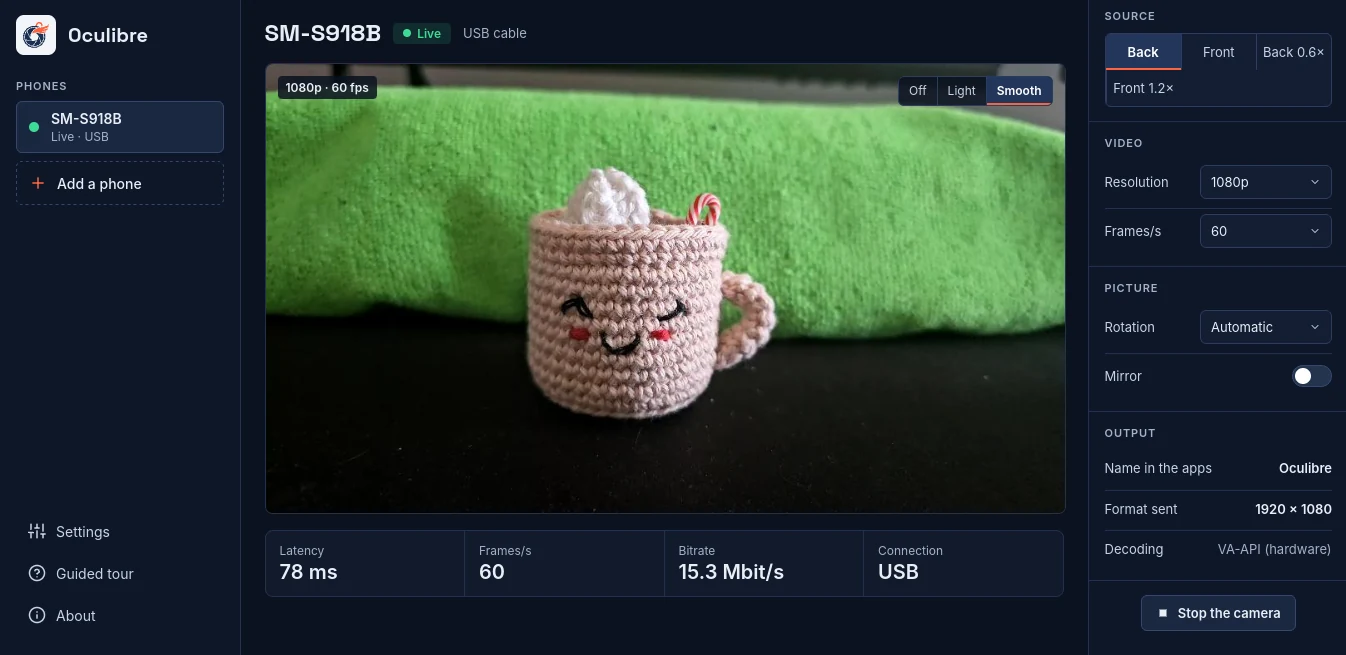
Oculibre turns any Android phone, even an old one, into a webcam for your computer. Over Wi-Fi or the USB cable, in every app, with no account and nothing sent to the cloud.
Windows · Linux · Android 5.0 and up
Why Oculibre
The camera of the phone sleeping in your drawer is better than most webcams. Oculibre puts it to work.
Free, for good
Open source under the MIT licence. No ads, no watermark, no “Pro” tier, no time limit.
Private by default
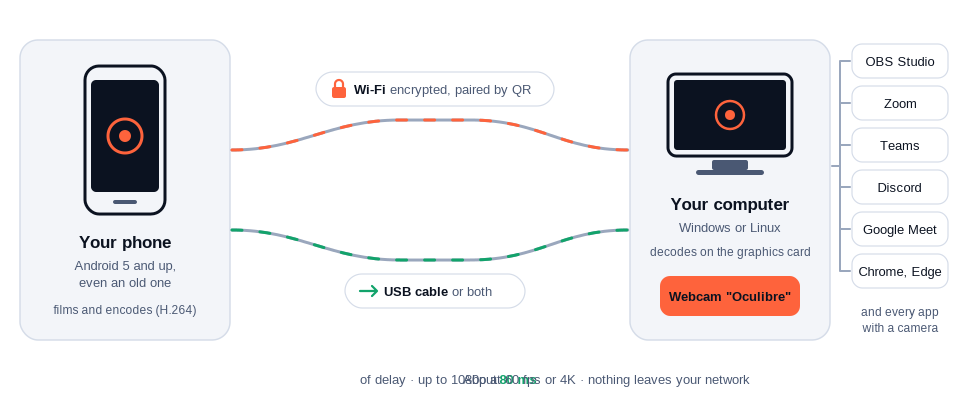
The video goes straight from the phone to your computer, never through a server. Over Wi-Fi it is encrypted, and only a phone you paired can connect.
Old phones welcome
Android 5.0 and up: a second life for a phone from 2015, and one less device thrown away.
Sharp and fast
Up to 1080p at 60 frames per second, or 4K, with about 80 ms of delay. The computer decodes the video on its graphics card.
Works in every app
The phone shows up as a webcam named “Oculibre” in OBS, Zoom, Teams, Discord, Google Meet, your browser and the Windows Camera app.
Made for everyone
Installers for Windows and Linux, no terminal needed. Every camera of the phone, chosen from the computer. Apps in English and French.
How it works
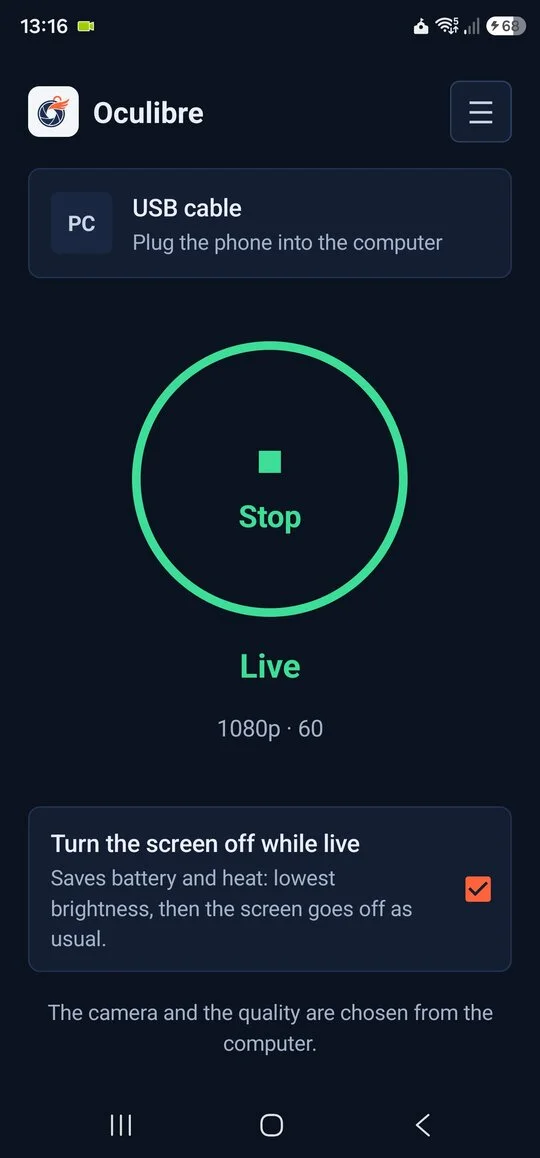
The phone films and compresses the video with its own hardware. Oculibre on the computer decodes it, turns it the right way up and hands it to a virtual camera that every app sees as a real webcam.
Install
Install Oculibre on the computer and on the phone.
Pair once
On the computer, click Add a phone and scan the QR code with the phone. Next time, the phone finds the computer by itself.
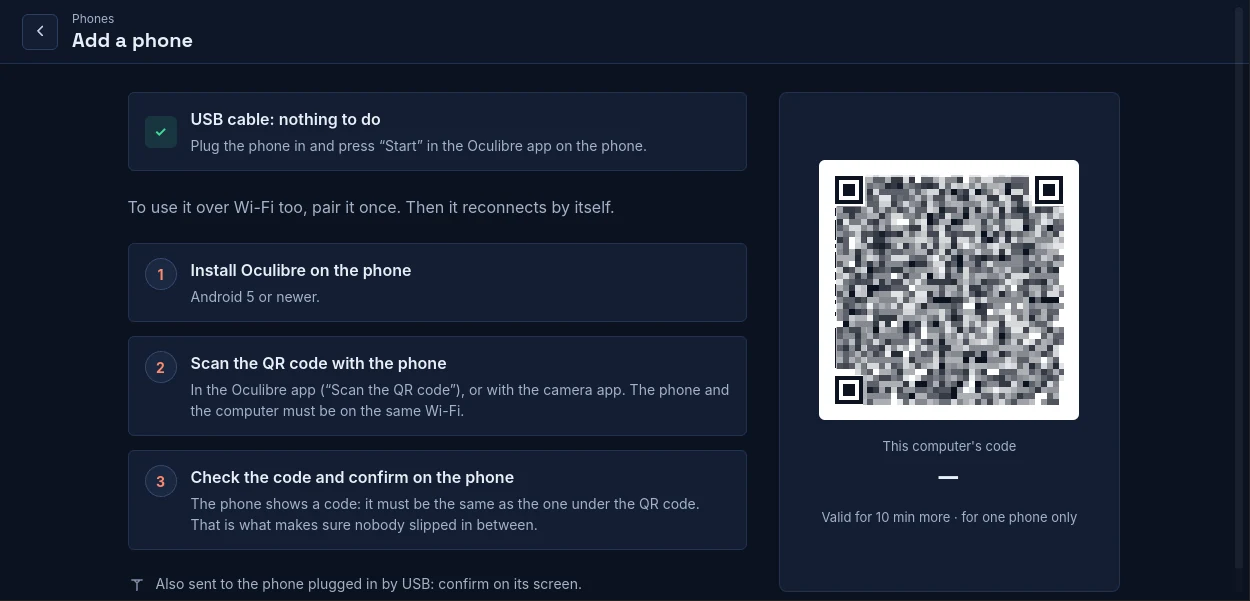
Choose “Oculibre”
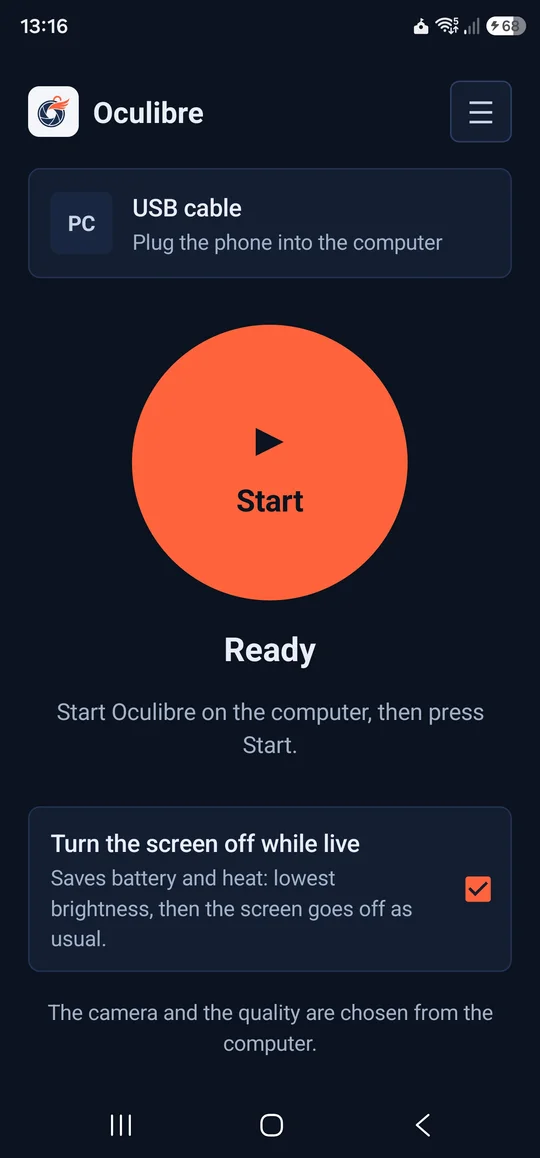
Press Start on the phone, then pick the camera “Oculibre” in your app.
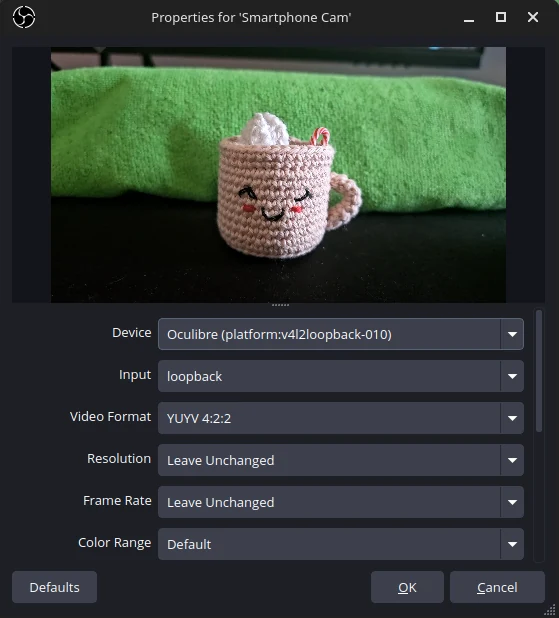
Over the USB cable: for now it needs USB debugging on the phone (Developer options), which gives the computer wide access to the phone: allow only your own computer. A version without it is planned. Wi-Fi does not need it.
Download
Oculibre is in beta. It works well on the computers and phones it was tested on, and your reports help it work on more. Latest version: 0.4.0
Windows
Windows 11 or 10, 64-bit
Installer (.exe)Not signed yet: if Windows shows “Unknown publisher”, choose “More info”, then “Run anyway”.
Linux
Ubuntu 26.04, 24.04 or Debian 13
Open the package with the software centre: it sets up the virtual camera, Secure Boot included. Other distributions: build from source.
Android
Android 5.0 and up
App (.apk)Allow installing apps from your browser or file manager when Android asks.
macOS: not yet, it is planned.
Check a download with SHA256SUMS.txt. Every package is built from the public source by GitHub, from a version tag.
Private by design
- No account, no server, no telemetry. Oculibre has nowhere to send your picture but your computer, and this site has no tracker or cookie either.
- Encrypted Wi-Fi. The video is protected with TLS, and the keys are exchanged by the QR code: nobody else on the network can watch the stream or inject a picture, and the computer only accepts the phones it paired.
- Works without the internet. The phone and the computer only need the same local network, or a cable.
- Open to inspection. All the code is public. Found a vulnerability? Report it privately.
Code signing policy
Free code signing on Windows will be provided by SignPath.io, certificate by SignPath Foundation (application in progress; until then the Windows installer is unsigned). Packages are built by the public release workflow; only Oculibre's own programs are signed. Team roles and details: code signing policy.
This program will not transfer any information to other networked systems unless specifically requested by the user or the person installing or operating it.
Questions
Is it really free?
Yes. Oculibre is free and open source software under the MIT licence: no ads, no paid version, no watermark, no time limit.
Which apps can use it?
Any app that uses a webcam: OBS Studio, Zoom, Microsoft Teams, Discord, Google Meet and other browser calls, the Windows Camera app… Choose the camera “Oculibre”. On Windows 11 a second one appears, “Oculibre” followed by “Windows Virtual Camera” in your language: it serves one app at a time, so pick the plain “Oculibre” to use several apps at once.
Wi-Fi or USB?
Wi-Fi is the simplest: pair once with a QR code, and the video is encrypted. USB gives the steadiest picture, but for now it needs USB debugging turned on in the phone's developer options.
Will my phone work?
Any Android phone from version 5.0 (2014) should work; the app only offers the modes your phone really delivers. It was tested on a Samsung Galaxy S23 Ultra and a Xiaomi Redmi Note 9 Pro. Yours is not in the list? A device report helps a lot, old phones most of all.
Why does Windows warn about an unknown publisher?
The installer is not signed yet, so Windows SmartScreen does not know it. Choose “More info”, then “Run anyway”. Free signing through SignPath Foundation is being set up.
Does it send sound?
Not yet: Oculibre is video only for now. A virtual microphone is planned for later.
And macOS, iPhone?
A macOS version is planned. The phone side is Android only.